Orders
Each kit type carries a credit balance. Placing an order either spends credits or is paid by card through a Stripe invoice.
Credits at a glance
Every kit type shows its current credit balance as a chip on the Orders dashboard. After a card payment or refill, the balance updates within a few seconds: the grant lands via a Stripe webhook, shown here by the live "updating…" spinner.

Create an order
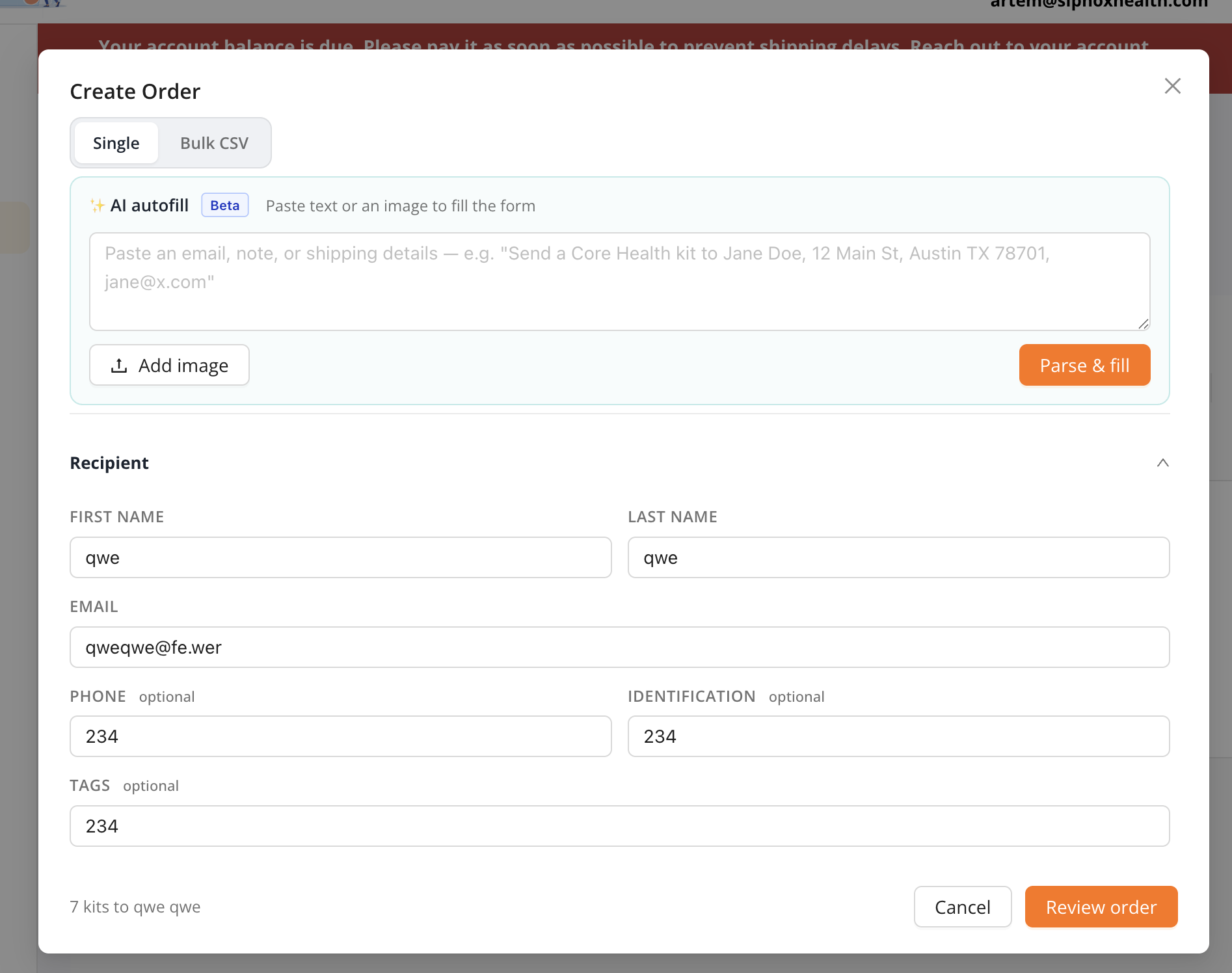
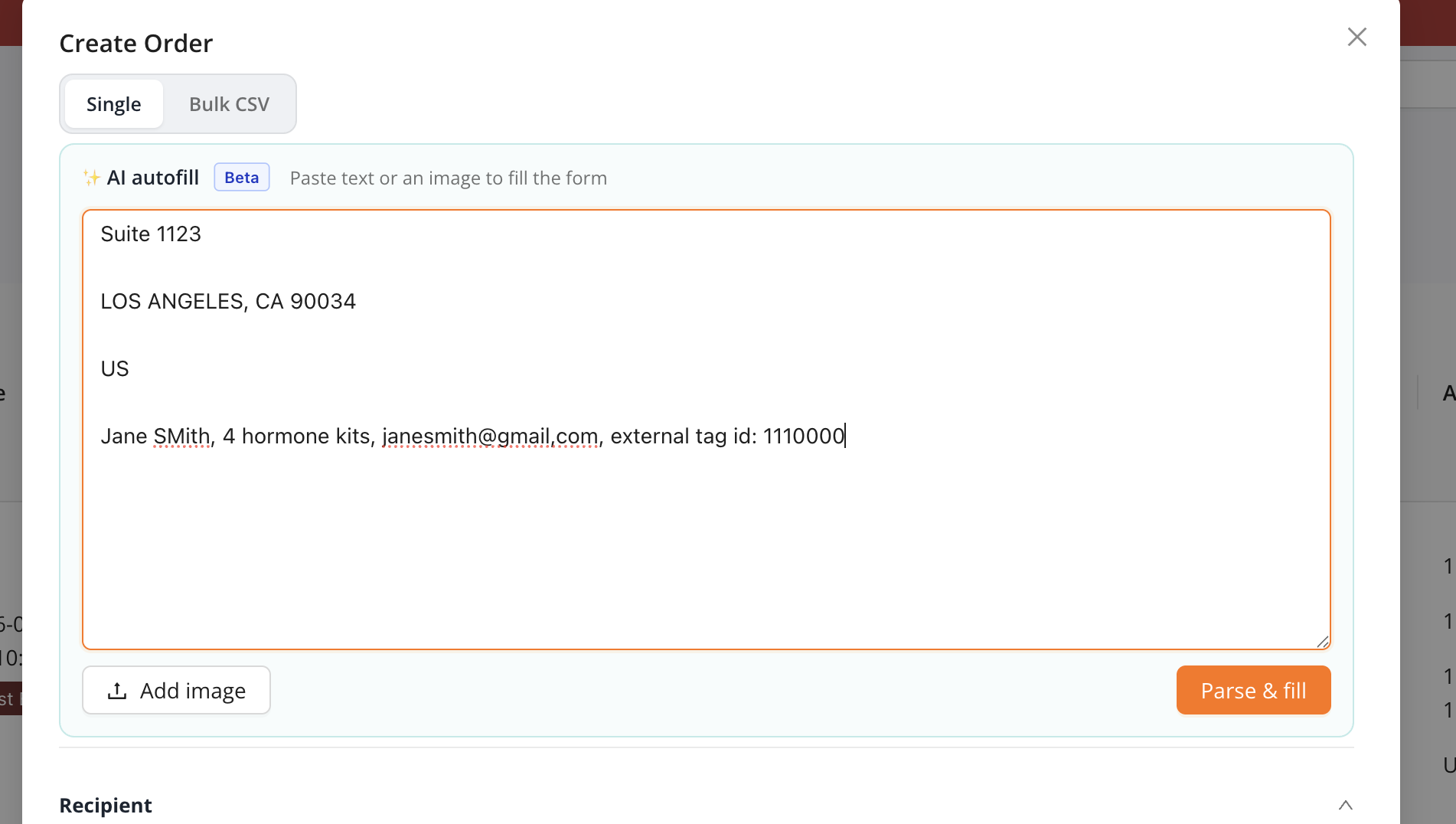
Open Create Order (Single or Bulk CSV) and enter the recipient. Optionally paste an email, note, or shipping label as text, or attach an image (for example a screenshot of a shipping label) into AI autofill (Beta) and press Parse & fill to populate the form.
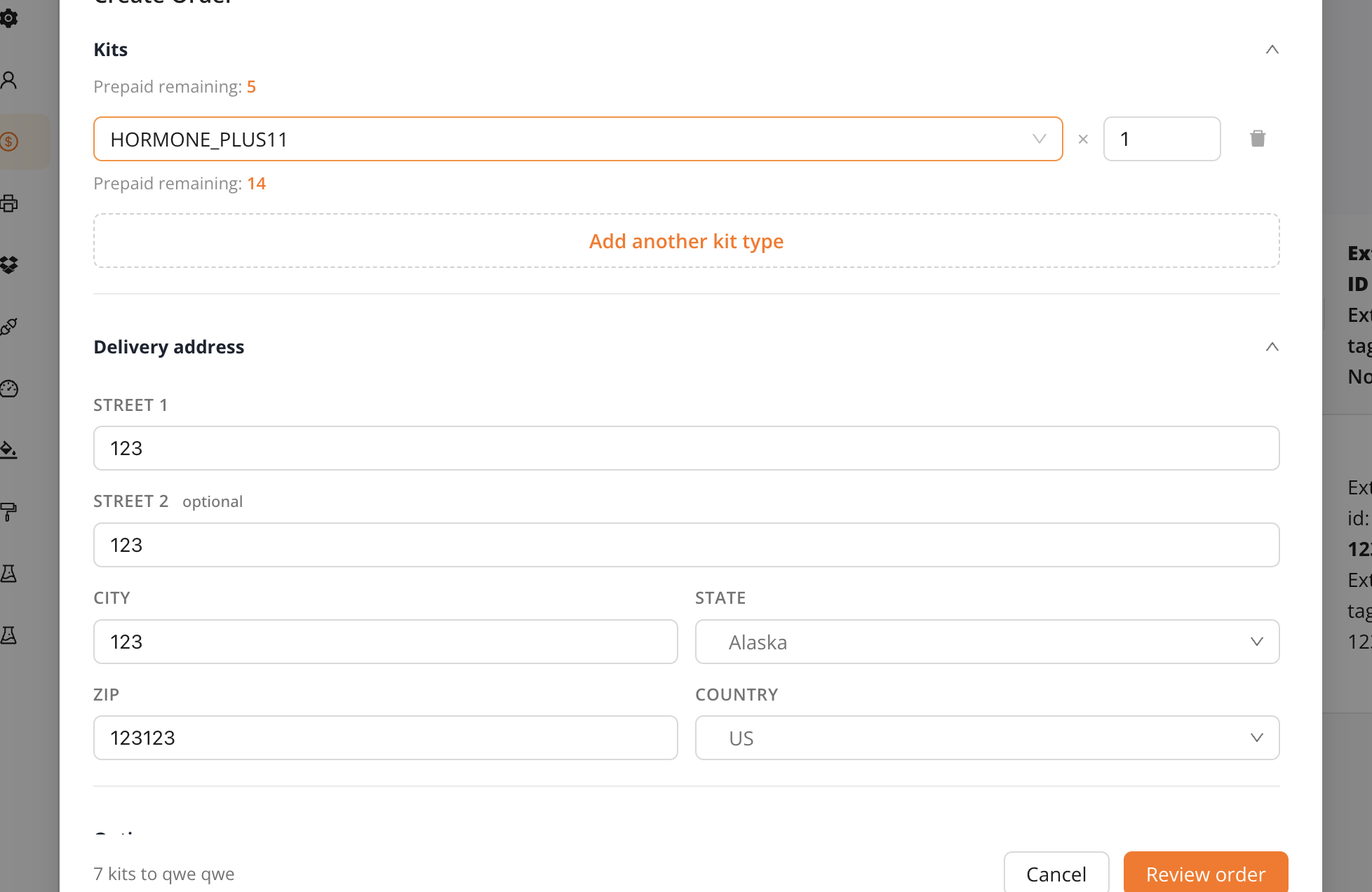
Pick one or more kit types with quantities (prepaid remaining is shown per type), then the shipping address.
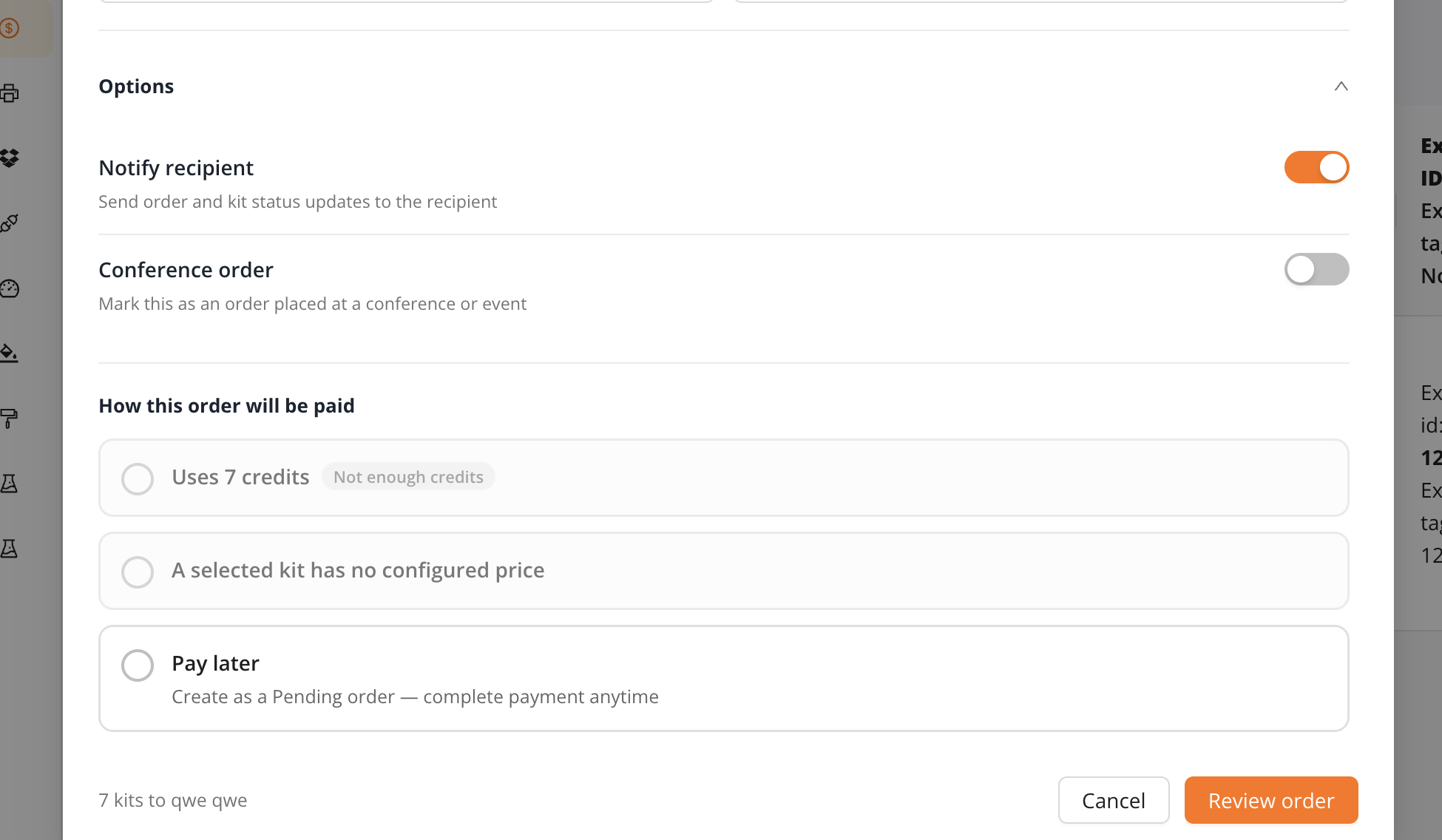
Set the Notify recipient, Conference order, and Delay shipment options (delayed shipment is also available via the API), then choose how this order will be paid:
- Credits: only available when the balance covers every kit in the order
- Card on file
- Pay later: creates the order as pending payment
Unavailable options show the reason inline (e.g. "Not enough credits", "A selected kit has no configured price").
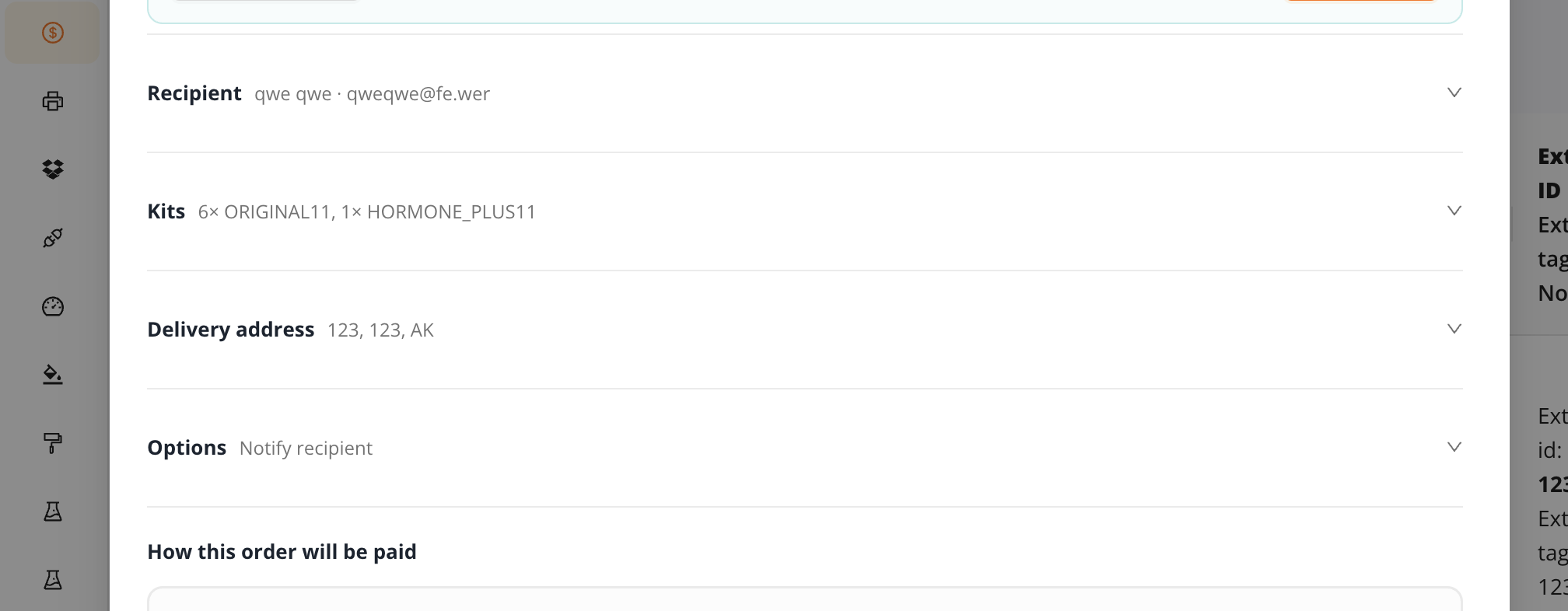
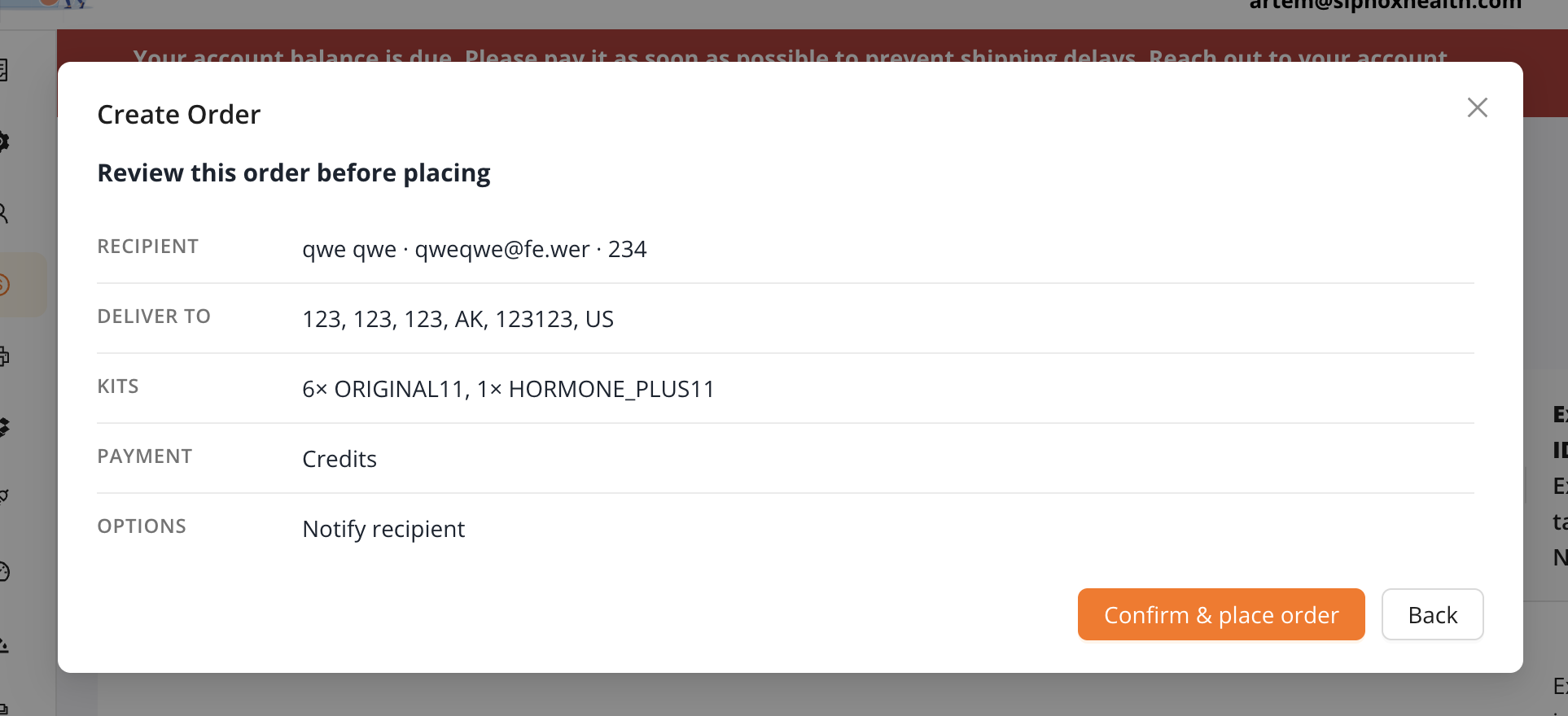
Each section collapses to a one-line summary for a final scan before review, then a read-only summary (recipient, delivery, kits, payment method) confirms with Confirm & place order.
What happens after you place
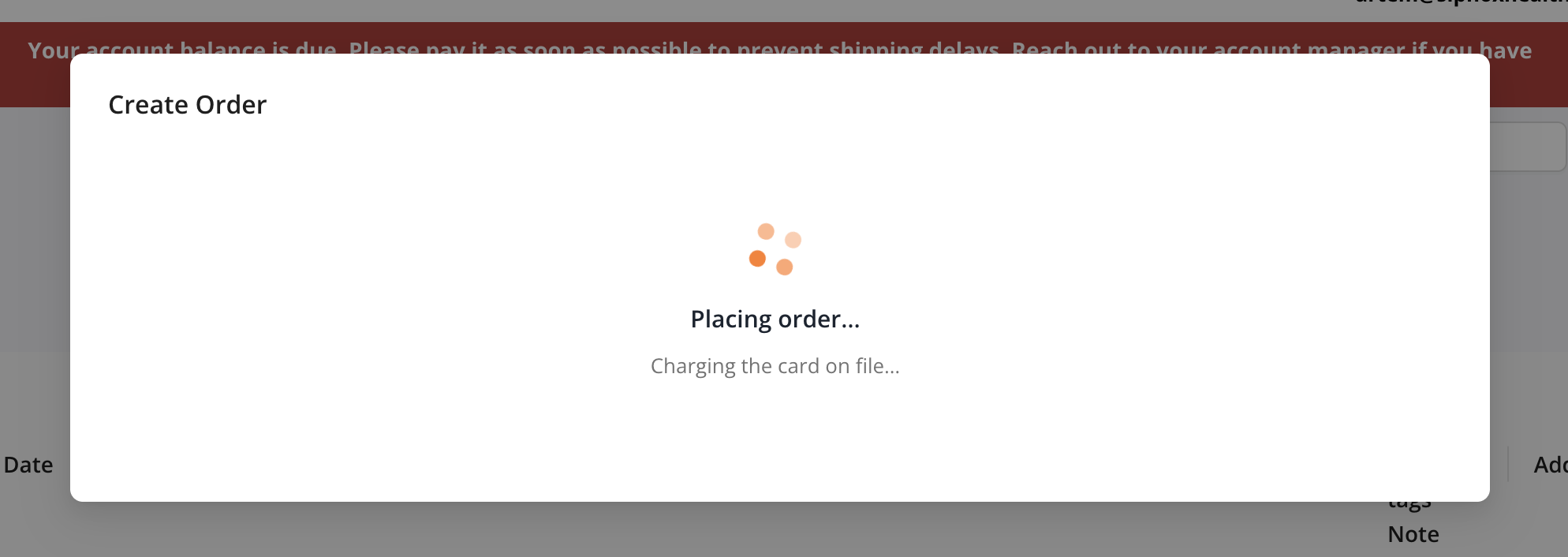
For a card order, the modal shows "Placing order… Charging the card on file…" while the Stripe invoice is paid and the order finalizes.
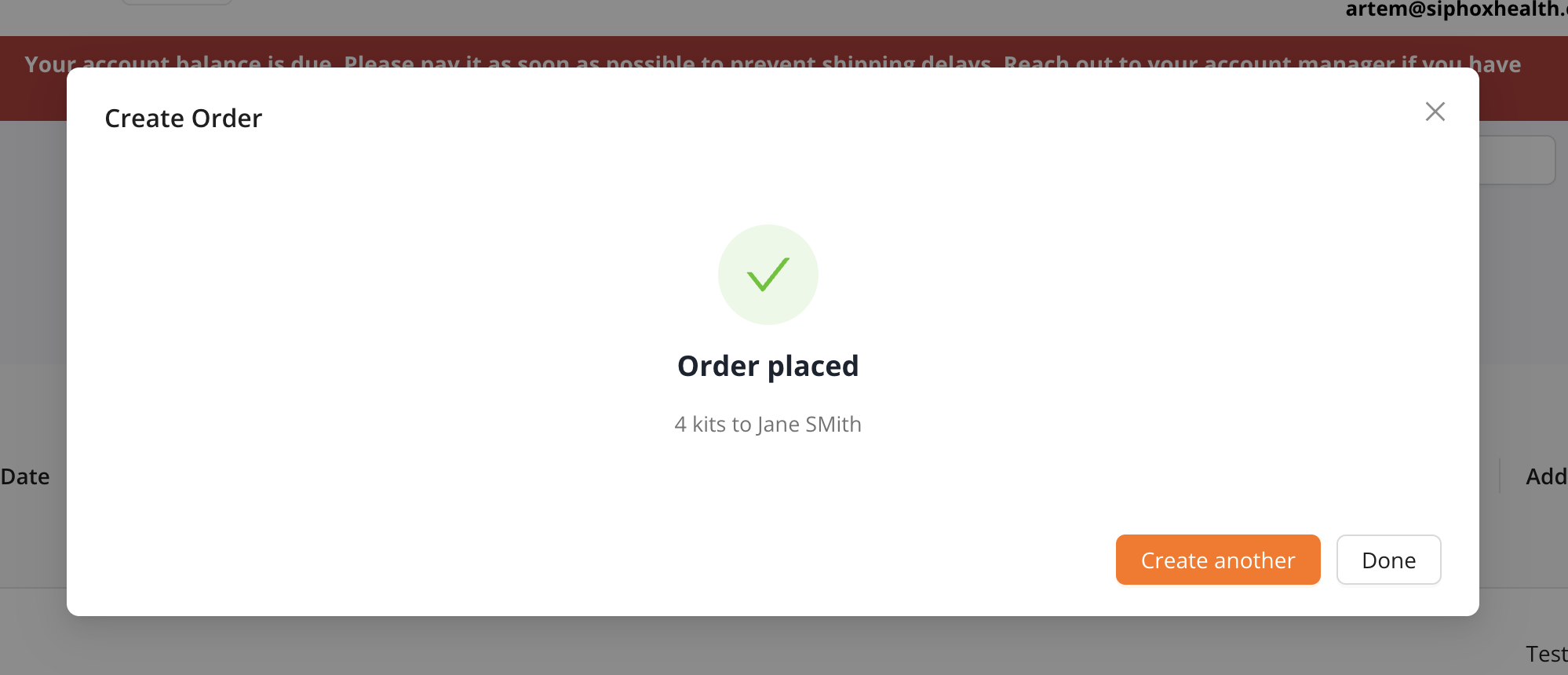
If credits or the card payment succeed, the real order is created immediately.
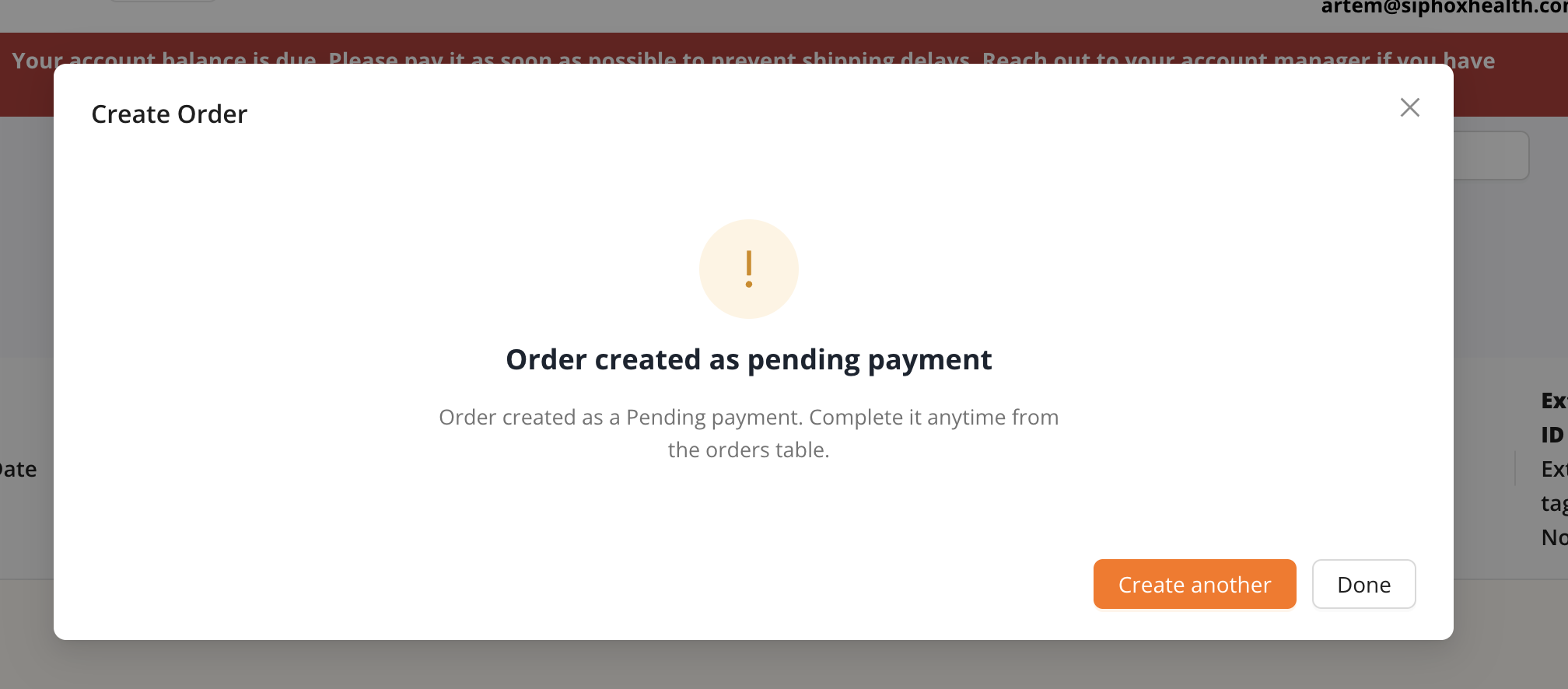
For Pay later, the order is saved as Pending payment and can be completed at any time from the orders table.
Complete a pending order
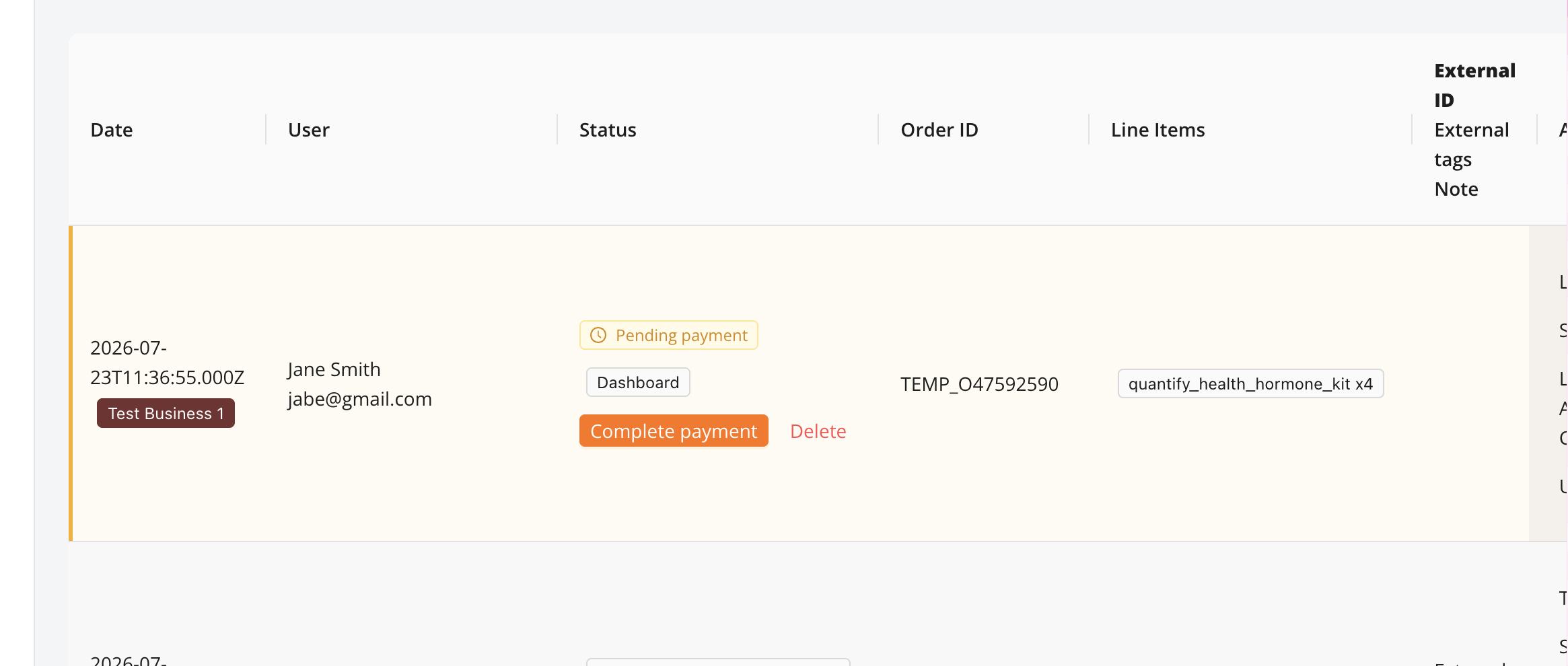
Pending orders appear highlighted in the orders table with a Complete payment action (and Delete).
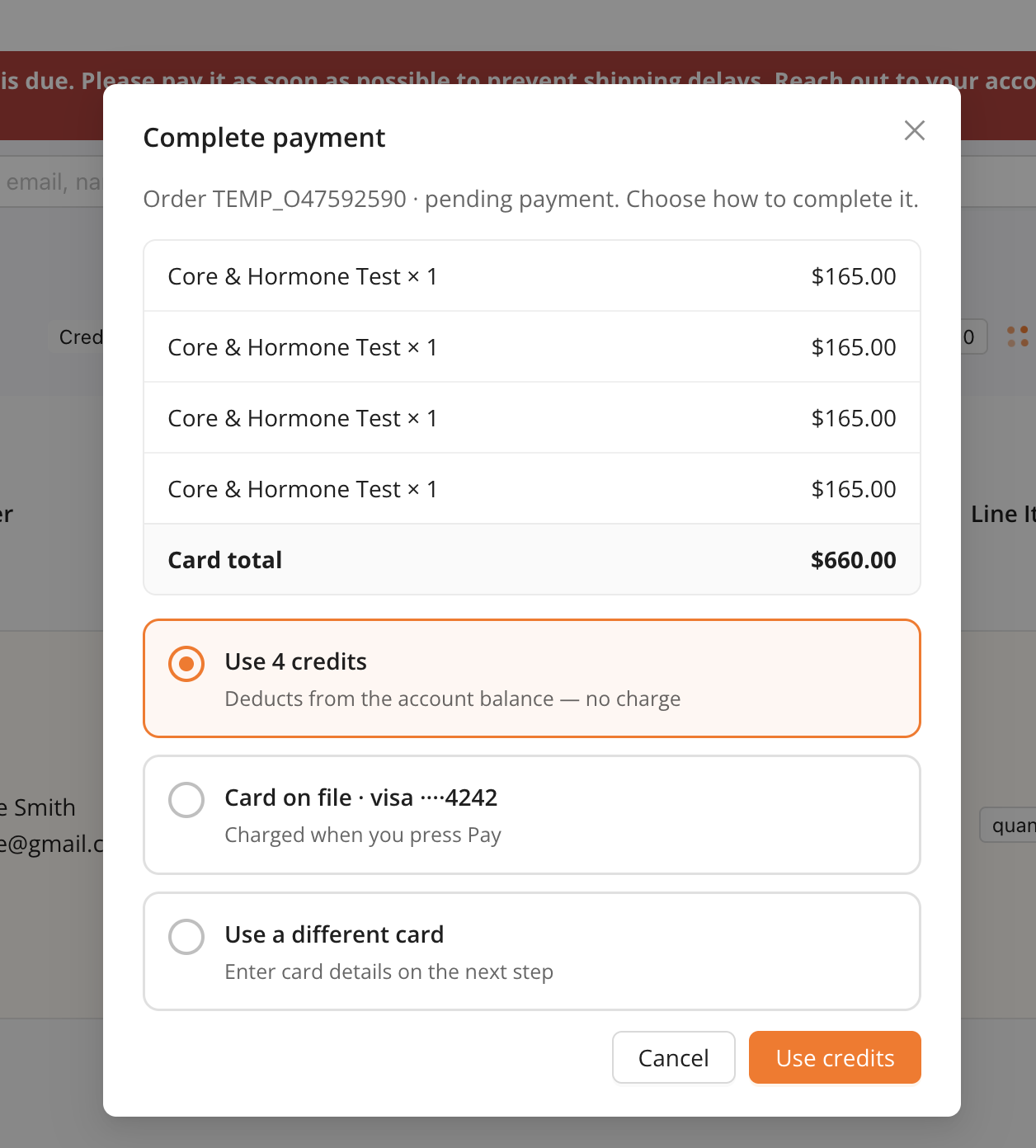
Complete payment shows the itemized card total and three ways to finish: Use credits (deducts from balance, no charge), Card on file, or Use a different card (inline Stripe card entry).
Refill kit credits
Click Refill Kit Credits to top up one or more kit types.
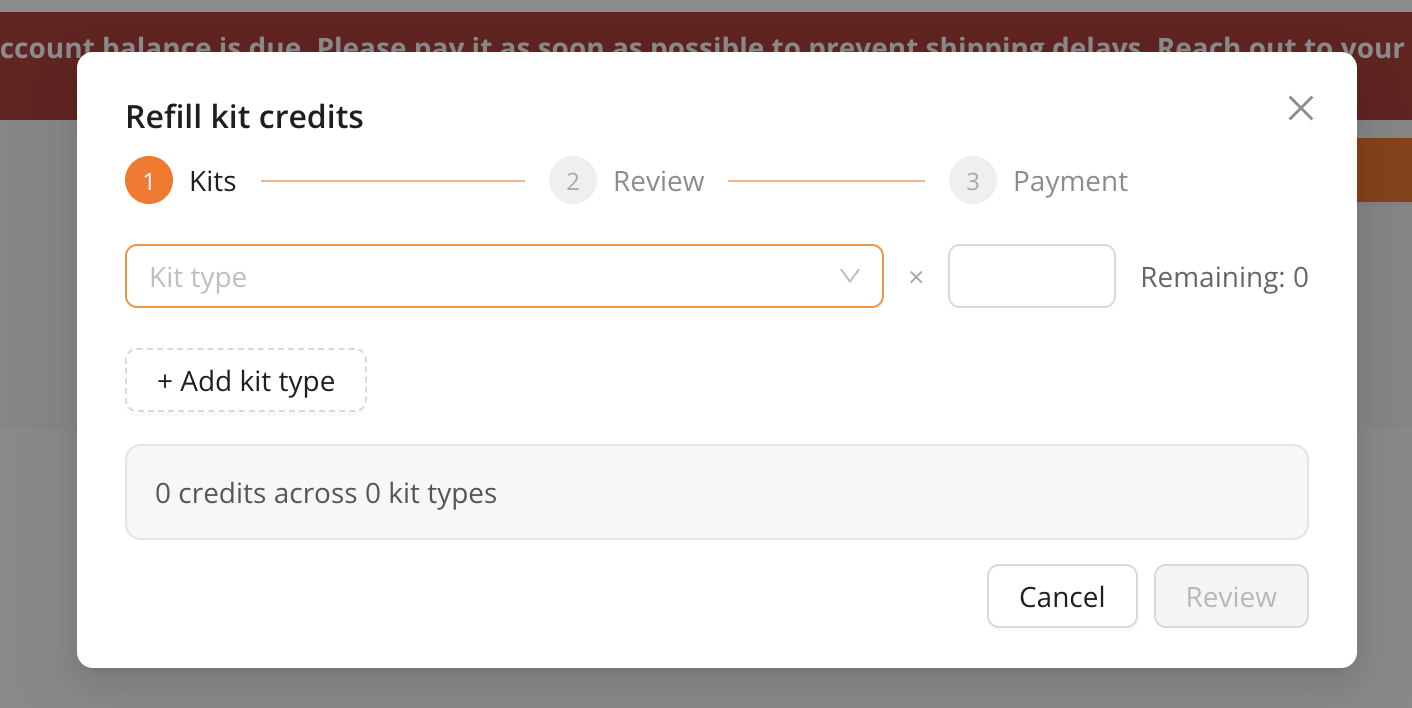
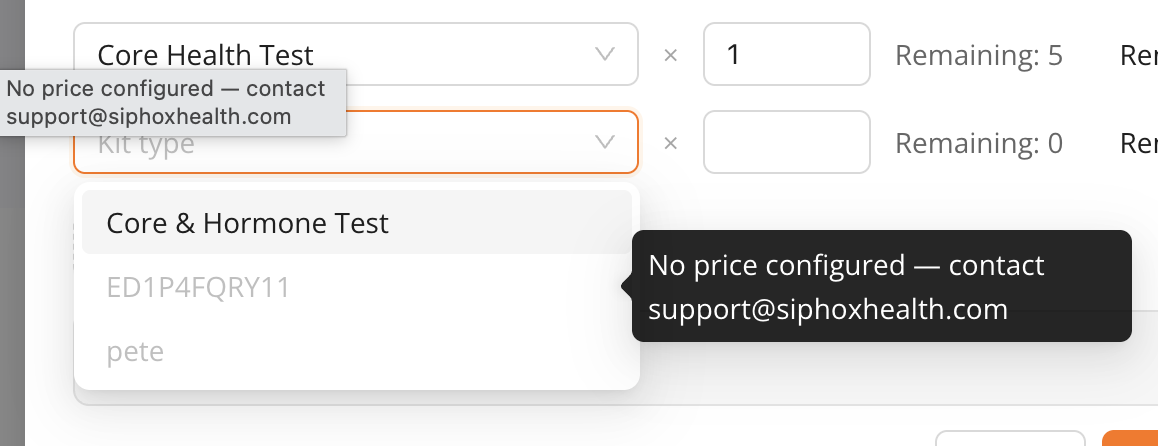
Kit types with no configured price can't be refilled; they're disabled with a "No price configured, contact support" tooltip.
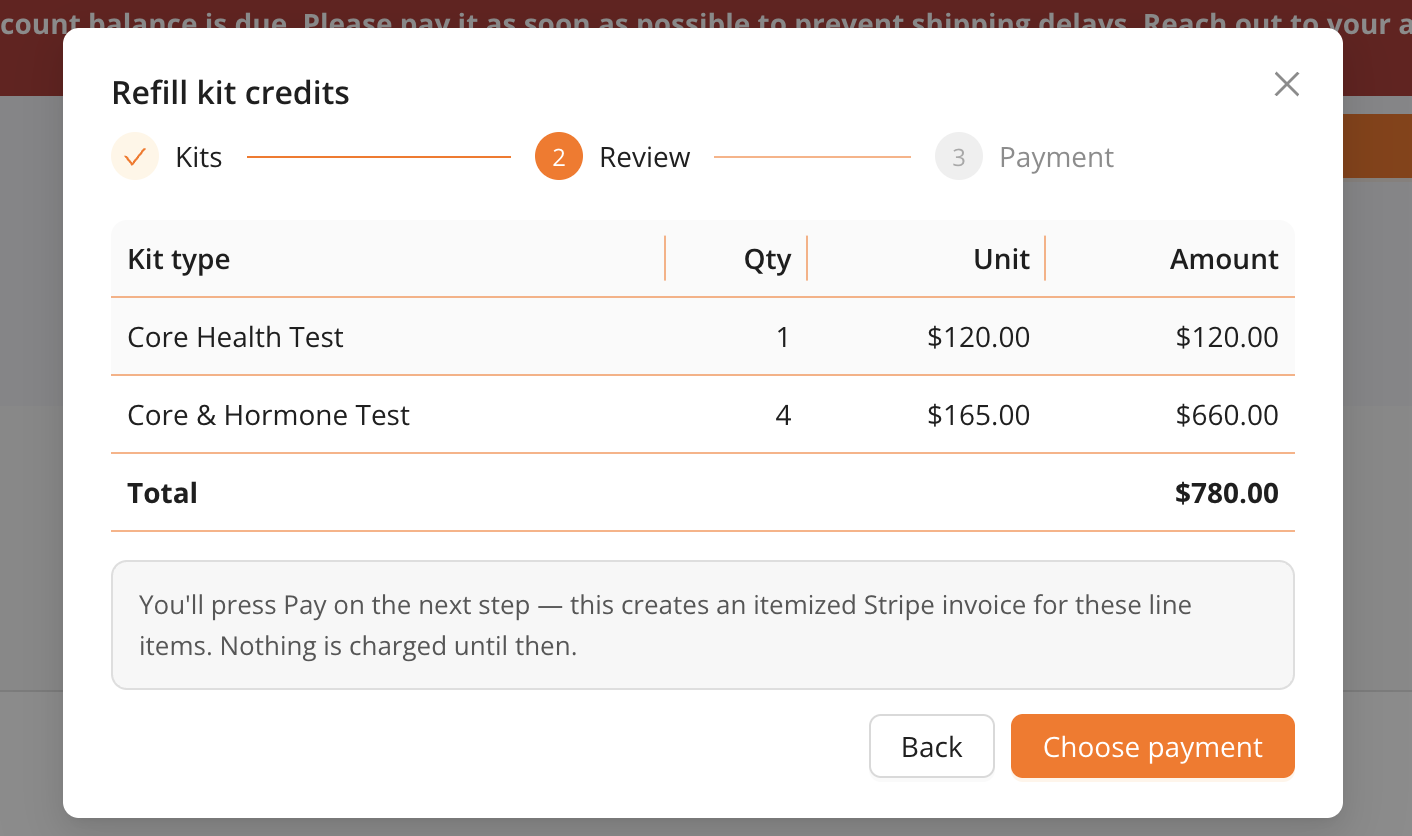
The next step shows itemized line items (unit × quantity) and the total; nothing is charged yet.
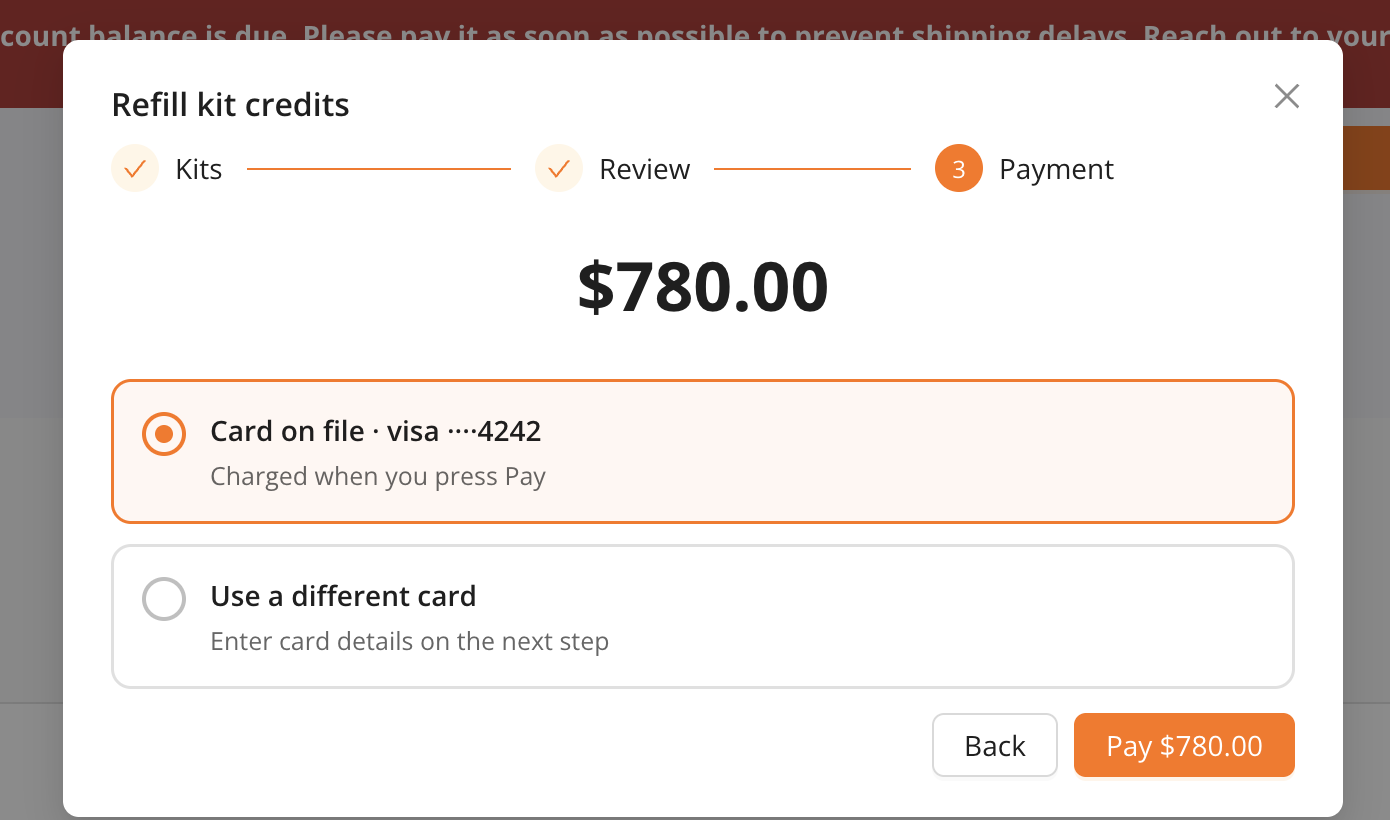
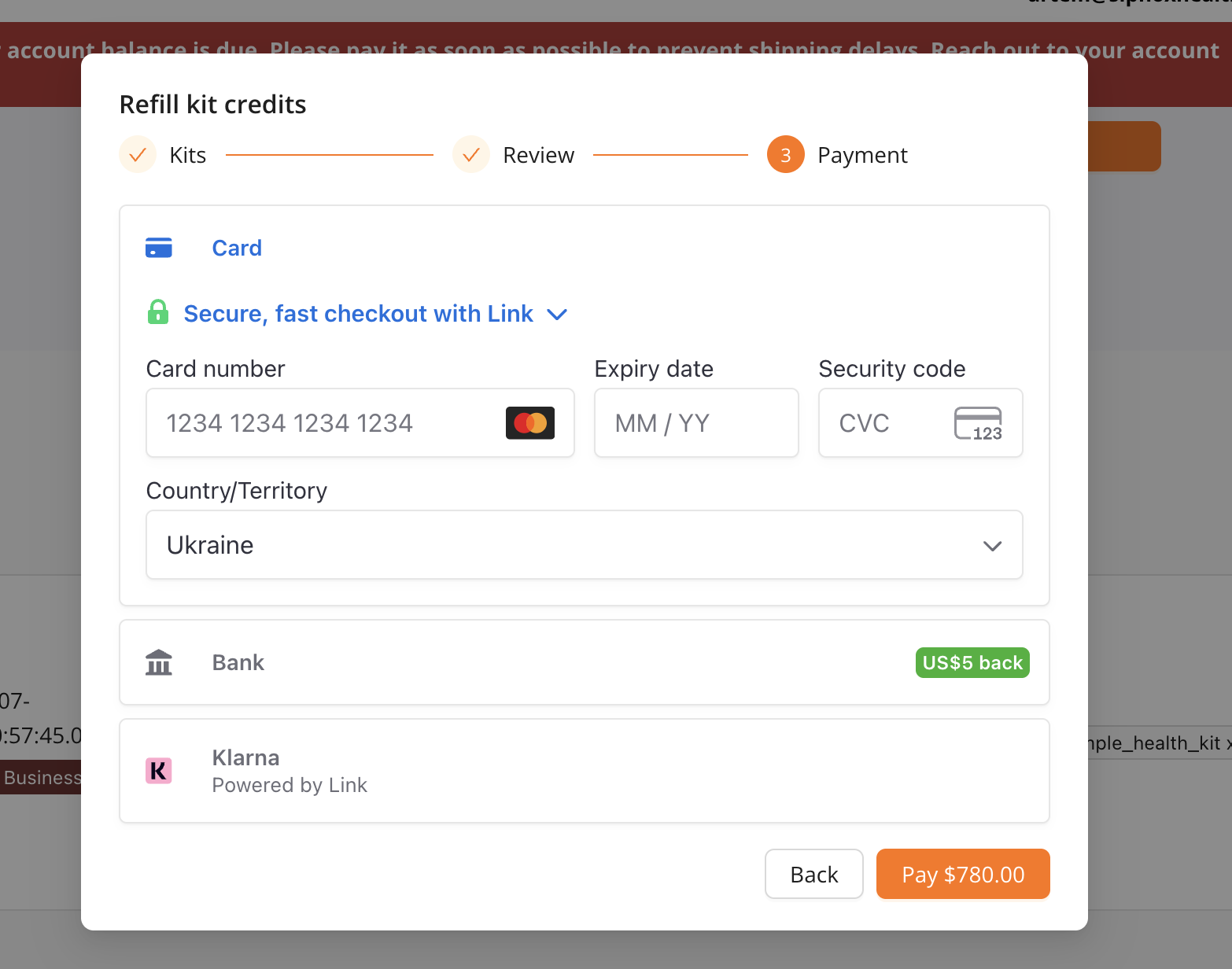
Pay with the card on file, or enter a new card inline via Stripe.
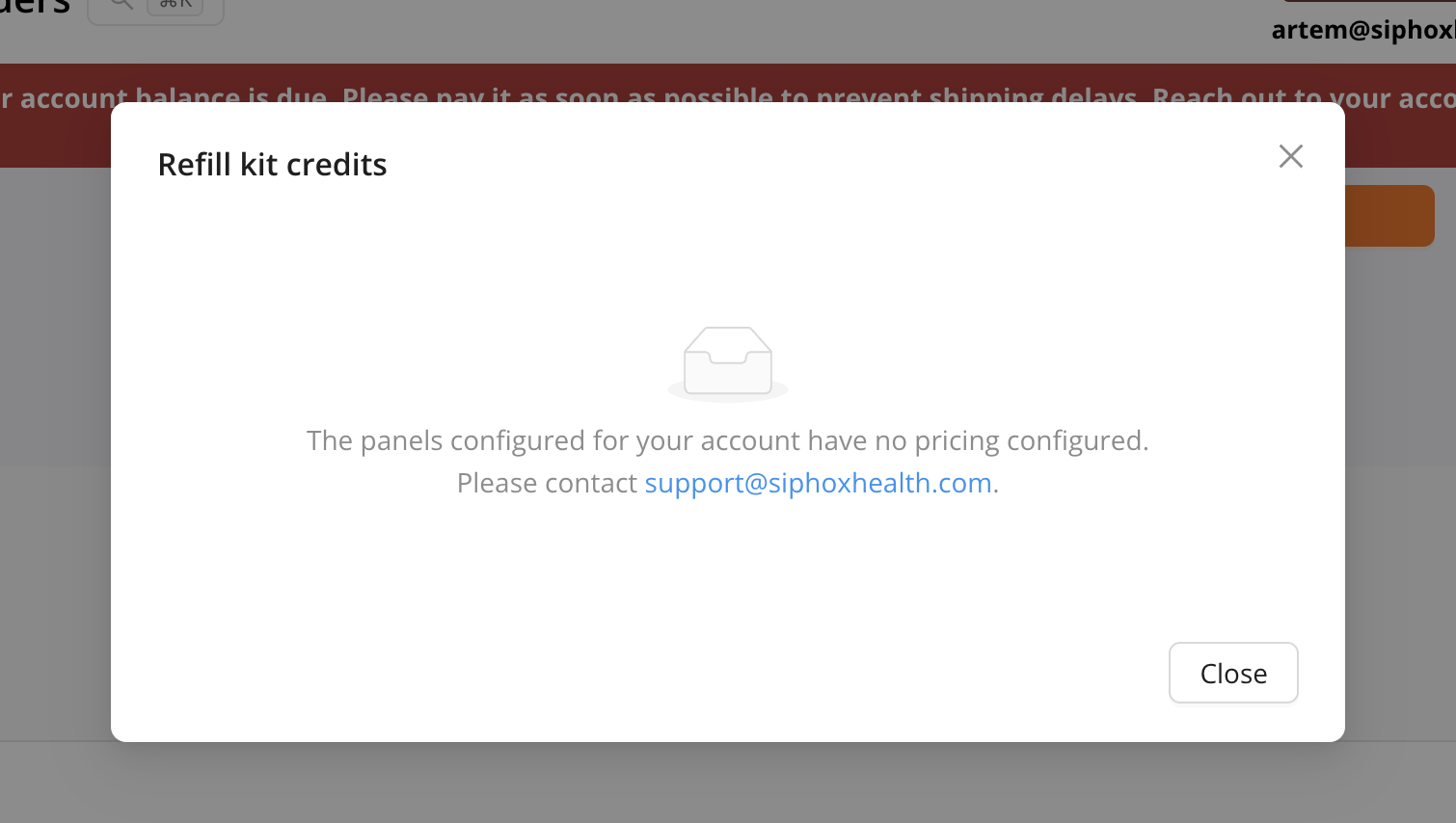
If none of the account's panels are priced, the refill flow shows an empty state pointing to support instead.
Credits from a refill are granted by the invoice.payment_succeeded webhook and are idempotent: a retry never double-grants.
Cancelling an order that was paid on demand with the card on file does not automatically refund the charge today. If you need a refund for a cancelled card order, contact support.